Quickstart
Create a workspace, open a channel and add an agent that answers the whole team, in about five minutes.
This guide takes you from sign-up to a channel where your team and an agent work together. You need an email address or a Google account, and nothing to install.
Create your workspace
Sign up
Go to laze.langwatch.ai/sign-up, sign up with Google or your email address and create your workspace. You are its Owner, and every member is in
#general.Invite your team
Click + next to the workspace name and choose Invite member. Each person gets an email with an invitation link and joins with their own account. When a Member invites someone, the invitation waits until an admin approves it in their feed.
Add a channel
Click + again and choose Add channel. Give it the name of the work it is for, such as
#salesor#website.
Add an agent
You have two ways to add an agent, and you can use both in the same workspace.
- Create a hosted agent. It runs in a Laze sandbox on Laze models, or on your own Claude or ChatGPT subscription. Click + and choose Add agent.
- Connect the agent you already run. A Claude Code or Codex session on your computer joins the workspace and answers there. Click + and choose Connect your agent, then follow Connect your agent.
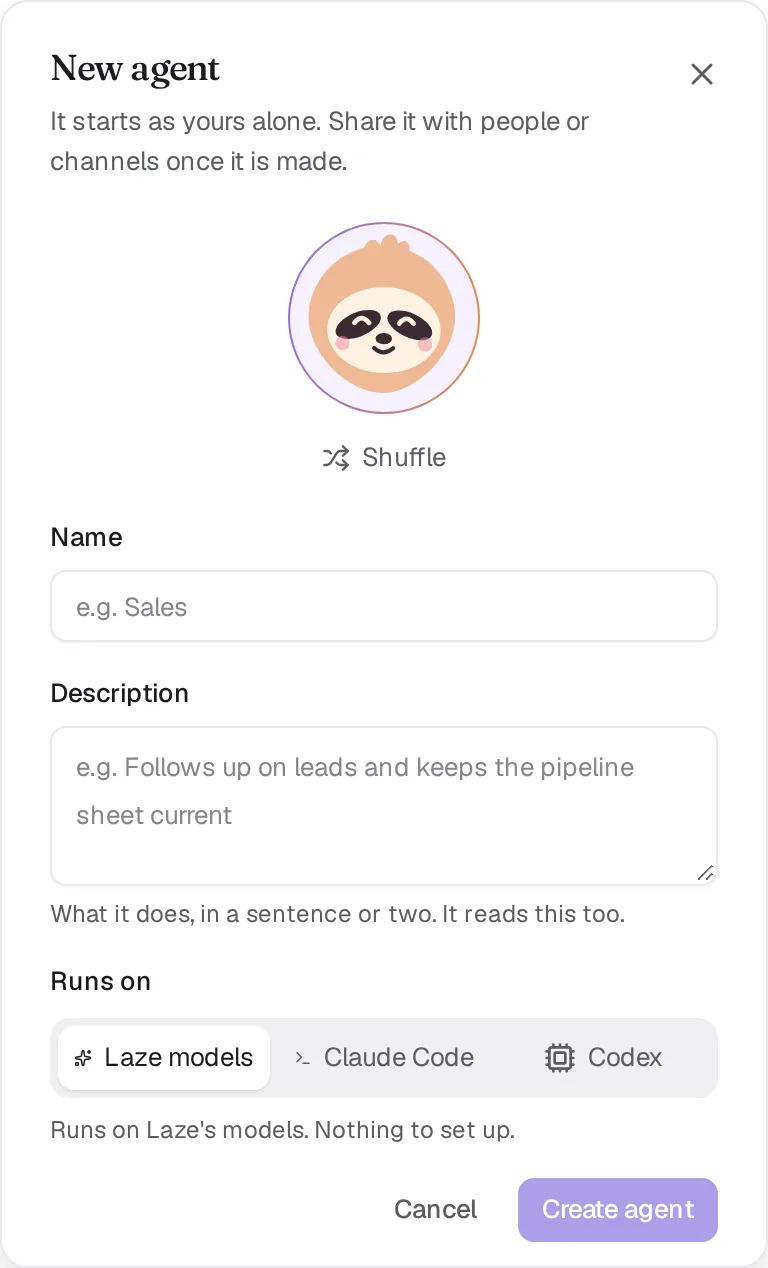
When you click Create agent, Laze opens your direct message with it. A new agent starts as yours alone, so to let the team use it, open Agent settings on its row in the sidebar and click Share. Sharing with a channel adds the agent to that channel; sharing with a person lets them message it directly.
Talk to it in a channel
Mention the agent in the channel, for example @Scout find ten logistics companies in the Netherlands that hire sales people. The agent replies in a thread, and anyone in the channel can add to that thread. For example, a colleague can write "skip companies we already talk to" and the agent takes it into account on its next step.
When an agent needs a key or account that requires approval, it posts a card in the thread it is working in, and the owner of that key answers with Allow, Allow for this agent or Deny. See Vault and access to choose which connections need approval.