Slack
Connect your Slack workspace, link your own Slack account and work in your Slack channels from Laze.
Laze mirrors your Slack channels and direct messages, so you read and answer them from Laze and add agents to them. Slack stays the source: Laze keeps a short cache to show messages fast and reads older history from Slack when you scroll back.
Connect your Slack workspace (admins)
Each company connects Laze through its own Slack app, made from the Laze manifest. An admin does this once.
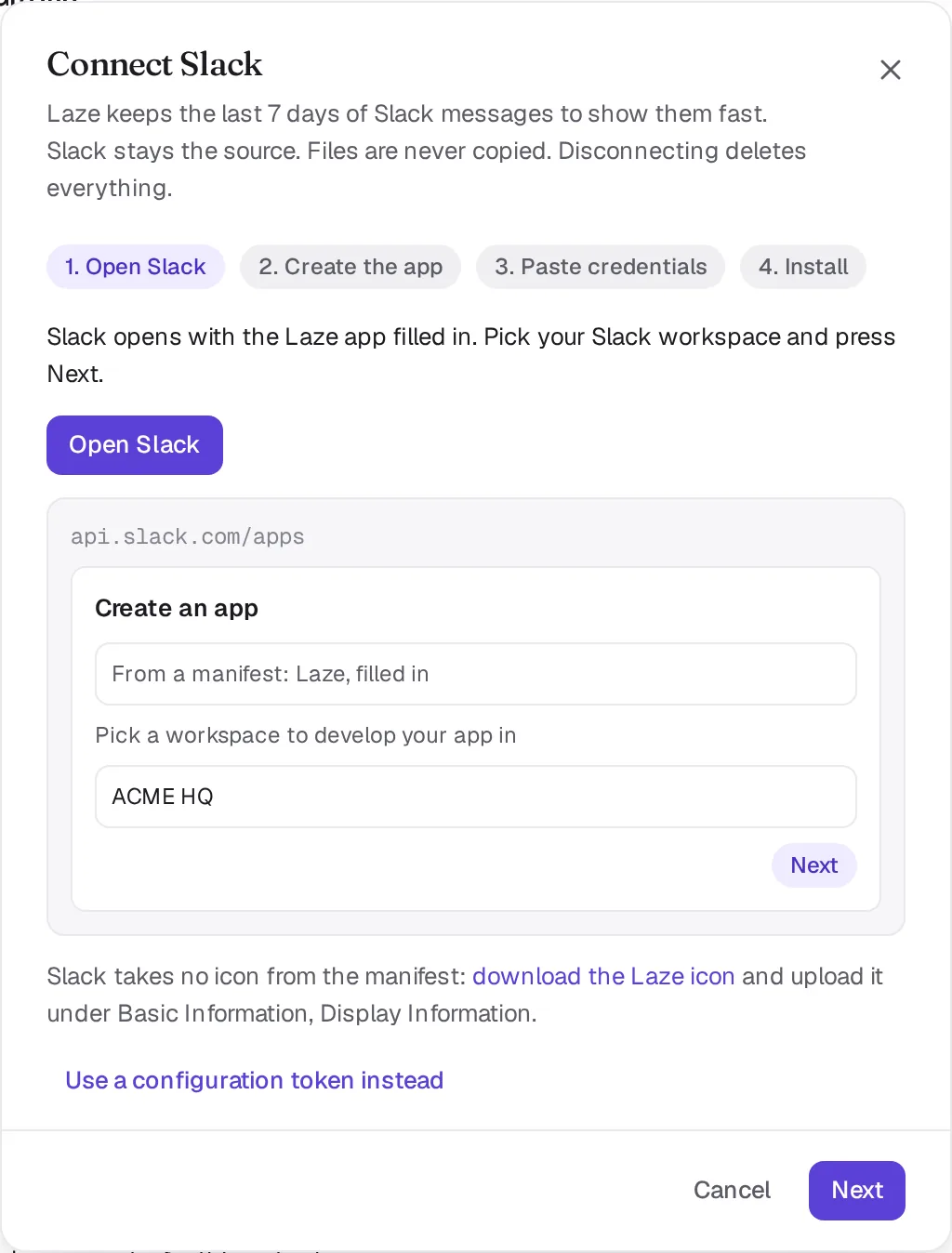
Open the setup
Open Settings, Connectors and click Connect Slack on the Slack card.
Open Slack
Click Open Slack. Slack opens its create-app page with the Laze manifest filled in. Pick your Slack workspace and click Next.
Create the app
Review the app in Slack and create it.
Paste the credentials
From the app's Basic Information page in Slack, copy the App ID, Client ID, Client Secret and Signing Secret into Laze. They go into the workspace keychain and are never shown again.
Install
Install the app into your Slack workspace. Laze checks the install before it connects.
Connecting the app shows nothing to anyone yet. Each person chooses to link their own Slack account in the next step.
Link your own Slack account
Once your workspace has Slack connected, the sidebar shows a Slack section with Connect and No thanks. You can also link from Settings, Slack at any time. After you link, Laze shows the Slack channels and direct messages you are in, and nothing else. Your colleagues see a mirrored channel only while their own Slack account is in it.
No thanks hides the prompt for you only, and is kept across devices.
What syncs
| In Slack | In Laze |
|---|---|
| Messages and thread replies | Show in the same channel and thread, with the author's Slack name and picture |
| Edits, deletes and reactions | Change the Laze message, and the other way round |
| Files | Open through Laze, streamed from Slack; Laze never stores a copy |
| Slack Connect channels | Show as shared with another organisation |
When you have linked Slack, a message you post in Laze goes to Slack as you. Agents post through the Laze bot under their own names. The bot joins a channel only when you add an agent to it.
Admins can exclude a channel from mirroring.
Search and history
Laze keeps the last 7 days of Slack messages; an admin can set this between 1 and 30 days. When you scroll past the cache, Laze reads older messages live from Slack, and a page read once is served again for 15 minutes. Search covers Laze messages and, in its own section, results from Slack.
Move a channel from Slack to Laze
An admin with a linked Slack account can turn a mirrored Slack channel into a Laze channel with Move to Laze. Laze reads the channel's whole history once, threads and reactions included, posts and pins a last message in Slack, archives the Slack channel and offers to invite the Slack members who have no Laze account. Files stay as links to Slack. Slack Connect channels cannot be moved.
Disconnect
Disconnecting Slack, after you confirm it, deletes everything Laze kept from Slack.
Limits
| Limit | Value |
|---|---|
| Slack workspaces per Laze workspace | 5 |
| Cache window | 7 days by default, 1 to 30 |