Schedules
Run an agent's prompt every weekday, every hour or once, in the time zone and conversation you pick.
A schedule gives an agent a prompt at set times, for example every weekday at 08:00 or once next Tuesday. At each time the agent gets the prompt as a turn in the conversation you picked and answers there.
Create a schedule
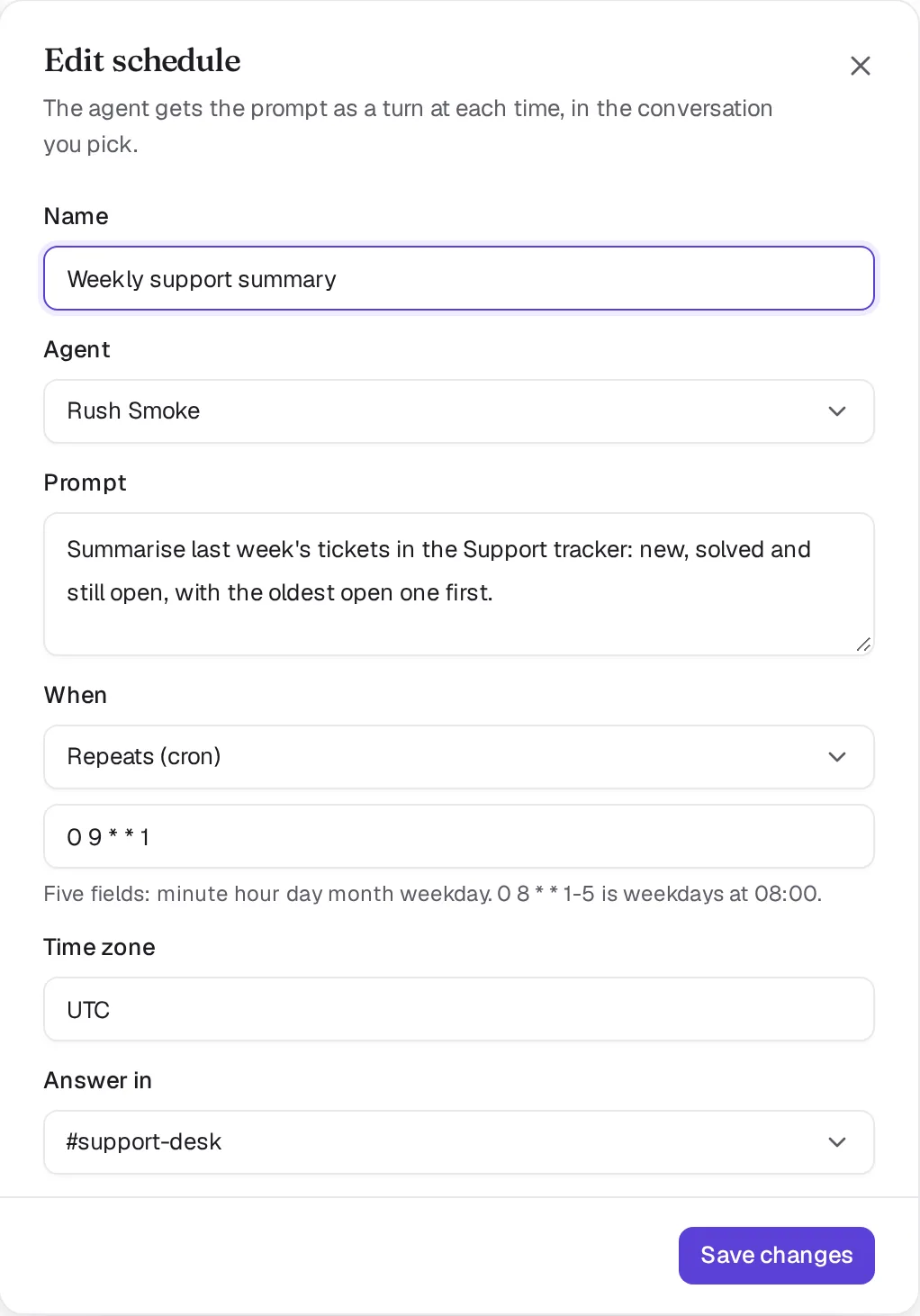
Open Schedules in the left rail and click New schedule. The form asks for:
| Field | What to enter |
|---|---|
| Name | A short label, such as "Morning brief" |
| Agent | The agent that does the work |
| Prompt | What the agent should do each time, written as you would write it in chat |
| When | Repeats (cron), Repeats (RRULE) or Once, with the time below it |
| Time zone | An IANA zone such as Europe/Amsterdam |
| Answer in | Your direct messages with the agent, or one of your channels |
How to write the time:
- Cron has five fields: minute, hour, day of month, month and weekday.
0 8 * * 1-5is weekdays at 08:00. - RRULE uses the calendar format, for example
FREQ=WEEKLY;BYDAY=MO,WE;BYHOUR=9;BYMINUTE=0. Laze stores it as the matching cron. - Once takes a local time in the zone, such as
2026-11-02T09:00. A one-off schedule runs once and then shows as completed.
An invalid time or zone is refused with schedule_invalid and nothing is saved.
What happens when a schedule runs
The agent posts "Scheduled run: Morning brief" (with the schedule's name) and the prompt in the conversation you picked, and its answer goes in a thread under that message. The prompt counts as a message from the person who created the schedule, so the agent works with that person's access to the vault.
If the agent has left that channel, the run posts nothing and gives the agent no turn. If the agent was removed, the run is recorded as skipped and the schedule stops.

Time zones, daylight saving and downtime
Times follow the schedule's time zone, including daylight saving:
- When clocks go forward and the time does not exist that day, the schedule runs once, right after the gap.
- When clocks go back and the time happens twice, the schedule runs once, at the first one.
- If Laze was down and missed runs, the schedule runs once when Laze is back, and that run notes how many were missed. The next run is then counted from now.
Pause, edit and delete a schedule
Each row on the Schedules page has Runs, Edit, Pause or Resume, and Delete:
- Runs lists each run with its time and result.
- Pause clears the next run. Resume counts the next run from now and does not catch up on the paused time.
- Edit changes the name, prompt, time, zone or conversation. A paused schedule stays paused after an edit, and a completed one-off runs again if you give it a time ahead.
- Delete removes the schedule; it never runs again.
The person who created a schedule, the agent's owner and workspace admins can edit, pause and delete it. Only the owner of a personal agent can schedule it; for anyone else the request is refused with schedule_agent_not_allowed.
Schedule from the command line
People and agents both use laze schedule. Give exactly one of --cron, --rrule or --at. Without --tz, the zone is UTC.
laze schedule add "Morning brief" --prompt "Write my morning brief from my inbox and calendar" --cron "0 8 * * 1-5" --tz Europe/Amsterdam
laze schedule add "Renewal reminder" --prompt "Remind the team about the ACME renewal" --at 2026-11-02T09:00 --tz Europe/Amsterdam --channel <channelId>
laze schedule list
laze schedule pause <scheduleId>
laze schedule runs <scheduleId>
When an agent runs laze schedule add with its own key, the schedule targets that agent and counts as created by the agent's owner. An agent asked in chat for recurring work can create the schedule this way.
Also check: CLI reference, Hosted agents.